Page:
Installation Guide
Pages
About
Adding a Remote Linux Machine
Android Application
Application Architecture
Application Updates
Automated Testing
Building from Source
CPU Monitoring
Checking for Updates
Connection Troubleshooting
Credential Management
Dedicated Hardware Monitoring Displays
Derivative Distribution Permission
Developer Documentation
Development Environment
Development Roadmap
Diagnostic Logs
Downloading Updates
Expanded Resource Monitor
First Time Configuration
Frequently Asked Questions
GPU Monitoring
GPU and VRAM Telemetry Problems
General Troubleshooting
Getting Started
Glossary
Home
Hover Monitor
How to Contribute
Install Later
Installation Guide
Installation Problems
Installing Updates
Jenkins and CI CD
Known Limitations
Licensing and Contributions
Linux Telemetry
Machine Ordering
Machine Selection
Native Linux Application
Native macOS Application
Network Monitoring Problems
Network Monitoring
Optional Monitoring Gateway
Package Authenticity
Performance Problems
Portable Edition
Quick Start
RAM Monitoring
Recovery and Rollback
Release Channels
Release Process
Remote Connection Problems
Remote Monitoring
Reporting Issues
Resource History
Resource Monitoring
SSH Configuration
Server and Service Monitoring
Settings and Persistence Problems
Settings
Software License
Source Code Organization
Storage IO Monitoring
Support and Troubleshooting
System Requirements
System Tray Context Menu
System Tray Icon
System Tray Problems
System Updates Available
Technology Stack
Third Party Licenses
Update Notifications
Update Problems
User Manual
VRAM Monitoring
Versioning
Wiki Index
Wiki Maintenance
Windows Monitoring Agent
iOS and iPadOS Application
Clone
3
Installation Guide
Sonja M Thomas edited this page 2026-11-26 23:44:57 -06:00
Home / Getting Started / Installation Guide
- Open the public release. Download the Windows x64 installer and SHA256SUMS.txt.
- In the download folder, run
Get-FileHash -Algorithm SHA256 .\AdaptiveResourceMonitor-*-windows-x64-setup.exein PowerShell. Compare the result and filename with the release checksum list. See Package Authenticity for signed-manifest verification. - Run Setup under the Windows user who will run ARM. Review and accept the license to proceed.
- Choose a destination or retain the default per-user path. Setup creates a Start menu shortcut. Select the optional desktop shortcut or Start with Windows task if wanted.
- Finish Setup and launch Adaptive Resource Monitor from the Start menu. Check the notification-area overflow if the icon is hidden.
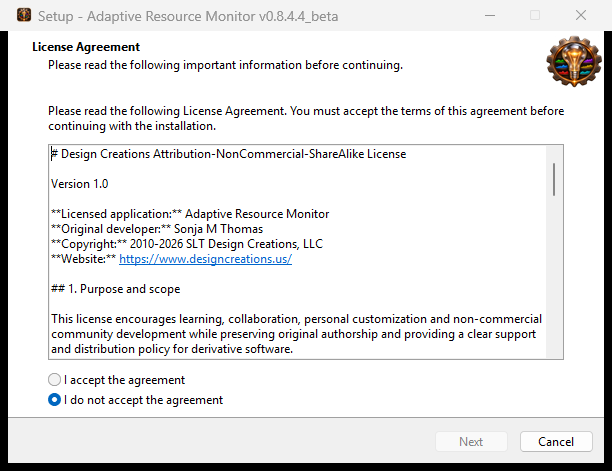
The illustration is from v0.8.4.4_beta and shows the same license step used by the current installer.
To uninstall, close ARM with its tray Exit action, then use Windows Settings → Apps → Installed apps and choose Uninstall for ARM. Setup removes the installed application and its installer-managed entries. Your per-user settings and optional history remain under %LOCALAPPDATA%\Adaptive Resource Monitor.

Original application developed by Sonja M Thomas, SLT Design Creations, LLC. Copyright 2010-2026 SLT Design Creations, LLC. Design Creations
