Page:
Adding a Remote Linux Machine
Pages
About
Adding a Remote Linux Machine
Android Application
Application Architecture
Application Updates
Automated Testing
Building from Source
CPU Monitoring
Checking for Updates
Connection Troubleshooting
Credential Management
Dedicated Hardware Monitoring Displays
Derivative Distribution Permission
Developer Documentation
Development Environment
Development Roadmap
Diagnostic Logs
Downloading Updates
Expanded Resource Monitor
First Time Configuration
Frequently Asked Questions
GPU Monitoring
GPU and VRAM Telemetry Problems
General Troubleshooting
Getting Started
Glossary
Home
Hover Monitor
How to Contribute
Install Later
Installation Guide
Installation Problems
Installing Updates
Jenkins and CI CD
Known Limitations
Licensing and Contributions
Linux Telemetry
Machine Ordering
Machine Selection
Native Linux Application
Native macOS Application
Network Monitoring Problems
Network Monitoring
Optional Monitoring Gateway
Package Authenticity
Performance Problems
Portable Edition
Quick Start
RAM Monitoring
Recovery and Rollback
Release Channels
Release Process
Remote Connection Problems
Remote Monitoring
Reporting Issues
Resource History
Resource Monitoring
SSH Configuration
Server and Service Monitoring
Settings and Persistence Problems
Settings
Software License
Source Code Organization
Storage IO Monitoring
Support and Troubleshooting
System Requirements
System Tray Context Menu
System Tray Icon
System Tray Problems
System Updates Available
Technology Stack
Third Party Licenses
Update Notifications
Update Problems
User Manual
VRAM Monitoring
Versioning
Wiki Index
Wiki Maintenance
Windows Monitoring Agent
iOS and iPadOS Application
Clone
3
Adding a Remote Linux Machine
Sonja M Thomas edited this page 2026-11-26 23:44:57 -06:00
Home / Remote Monitoring / Adding a Remote Linux Machine
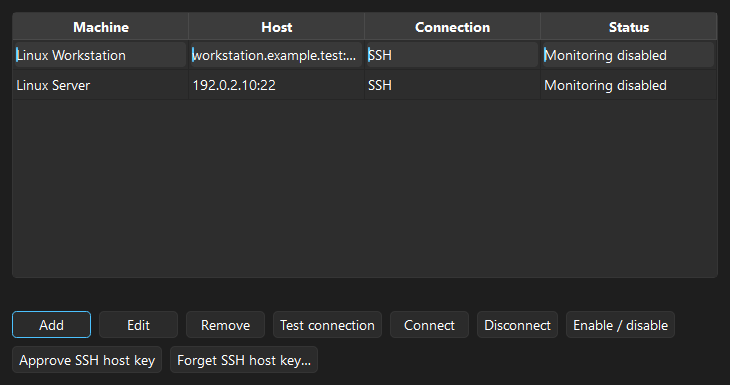
- Open Remote Targets → Manage Remote Targets from the tray, then choose Add.
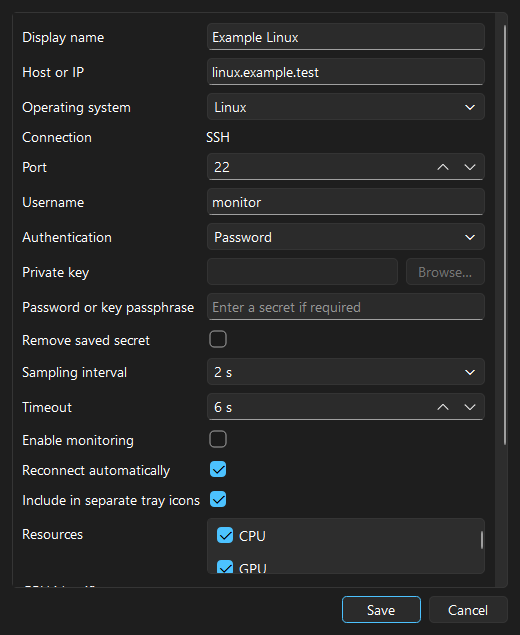
- Set a display name such as Lab Linux. Enter your authorized host and port. A documentation example is
linux.example.test, port22, accountmonitor. - Choose Linux, then Password or Private key. Private key authentication includes the key-file picker and a passphrase when required. Saved secrets use Windows Credential Manager.
- Save the initially disabled profile. Select Test connection to request the SSH key and one telemetry sample.
- Obtain the true fingerprint separately from the system or its administrator. Compare it with the prompt, then choose Approve SSH host key for a matching fingerprint. Test again.
- Choose Connect or edit the profile to enable monitoring. Check the machine in the monitor dropdown to show it.
See SSH Configuration for prerequisites and Connection Troubleshooting for failures.

Original application developed by Sonja M Thomas, SLT Design Creations, LLC. Copyright 2010-2026 SLT Design Creations, LLC. Design Creations